Step 1 / 28
Create your account
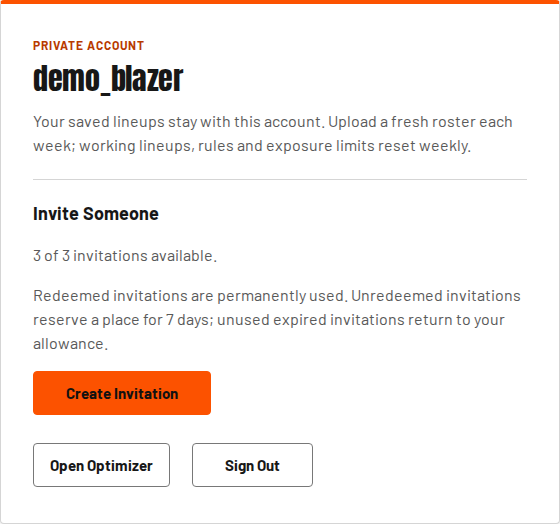
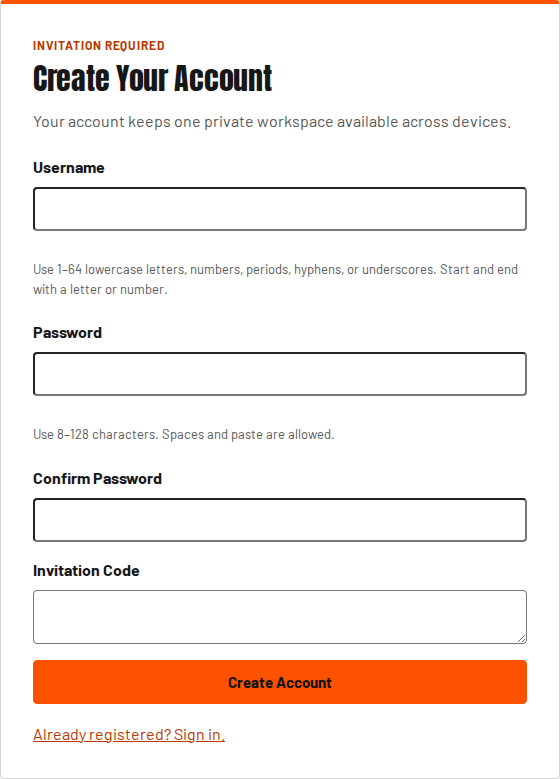
An account keeps your collection and entered lineups available when you sign in on another device. You need an invitation code to register.
- Open Sign in, then Create account.
- Enter your invitation code, choose a username, and choose a password of 8 to 128 characters.
- Save the recovery code shown after registration somewhere safe. It is shown only once.


Step 2 / 28
Try the optimizer as a guest
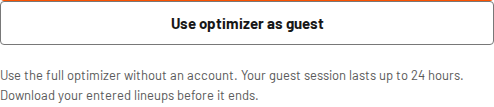
Guest mode gives you the full optimizer. Each guest session lasts up to 24 hours. You can start another guest session anytime, but you’ll begin with a blank slate. Download any lineups you want to keep before your session ends.
- On the sign-in page, choose the guest option.
- Download any lineups you want to keep before leaving the guest session.
Guest lineups do not transfer to an account. Signing in ends your guest session.


Step 3 / 28
Invite another player
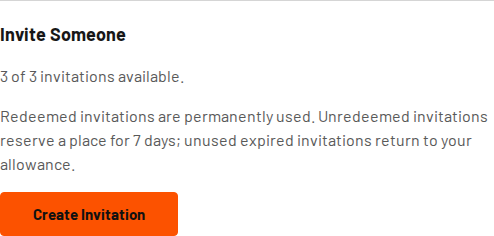
Regular accounts can invite three people. The site owner has unlimited invitations.
- Open Account and create an invitation.
- Share the code with the person you want to invite.
Each code works once and expires after seven days. A used invitation uses a place in your allowance; an unused expired invitation returns that place.


Step 4 / 28
Keep your recovery code safe
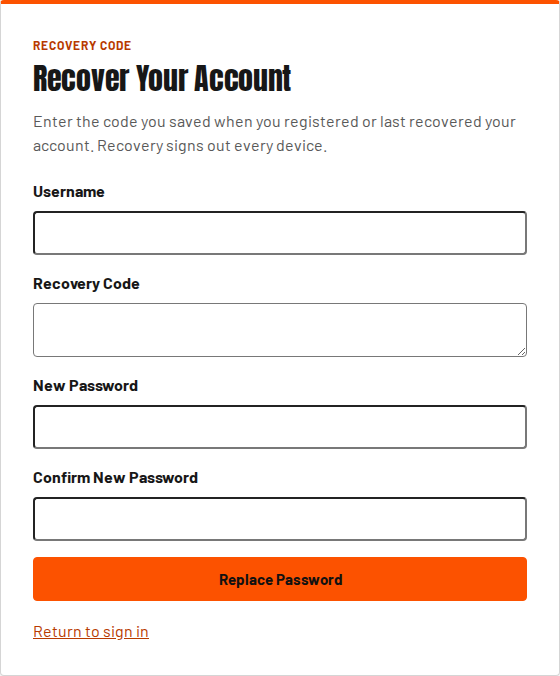
If you forget your password, your username and recovery code let you choose a new one. There is no password-reset email.
- Open the recovery page from Sign in.
- Enter your username, recovery code and new password.
- Save the replacement recovery code. The previous code stops working, and other devices are signed out.


Step 5 / 28
Export and upload your roster
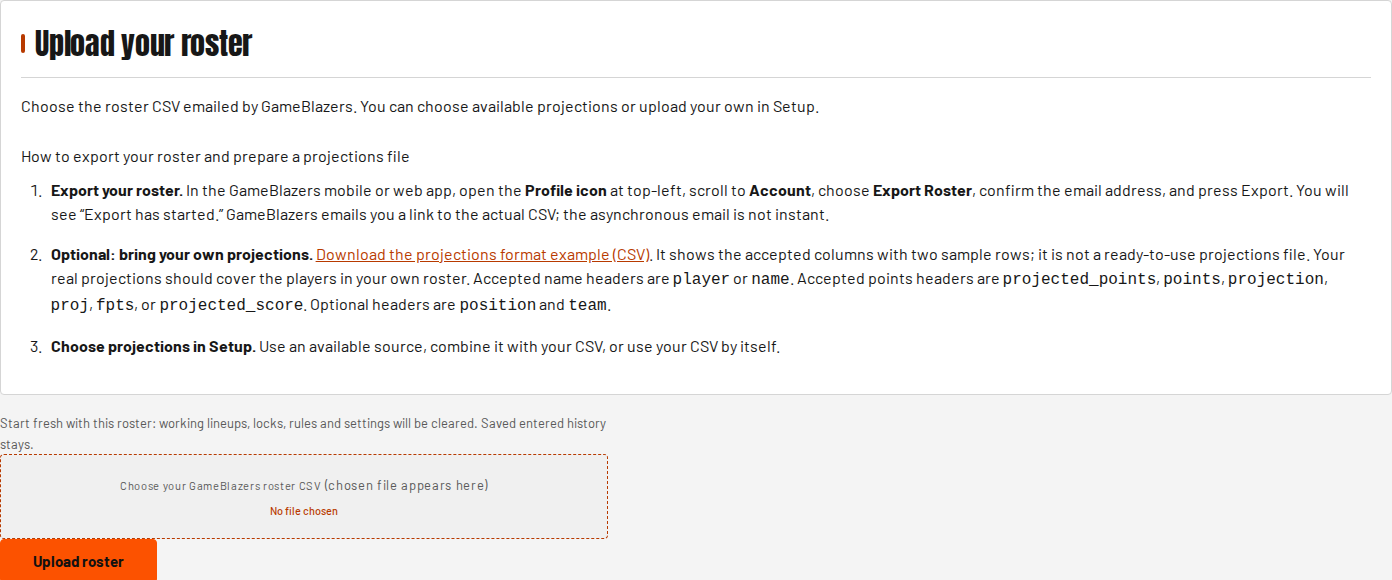
Start with the roster CSV from GameBlazers, so the optimizer knows which exact cards you own.
- In GameBlazers, open your profile, choose Account, then Export Roster. Follow the email instructions to download the CSV.
- Here, open Upload, choose that CSV and upload it.
- Upload a fresh export after the Tuesday salary reset, and whenever your collection changes.
- The cards expiring on your upload date or the next two days appear in a dialog once after upload; select View cards on Setup or This week's lineups to reopen it.
- To change the roster during the week and keep your lineups, use Update roster in the workbench.
Every card stays usable by default. Check cards and select Exclude checked cards to leave them out of the next Generate or Reoptimize; current lineups stay as they are. Uncheck and save again to use them. The Already expired section lists cards that had expired before upload; they stay out of new lineups unless marked played or placed and locked with Add or Edit. View cards remains available while this roster is uploaded, including in Add more lineups, which keeps your choices. A new upload starts with nothing excluded.


Step 6 / 28
Choose your projections
Projections are estimates of player points. Your card’s multiplier is applied when lineup points are shown. Salary is already the final amount from your roster.
- In Setup, choose an available projection source or Average. You can also upload your own projections CSV.
- Select Apply projections before building.
Average uses the available player projections from eligible sources. Missing players are left out of that player’s average; numeric zero values are included. If you also apply a CSV, its matching player points take precedence.



Step 7 / 28
Choose the contests you want to enter
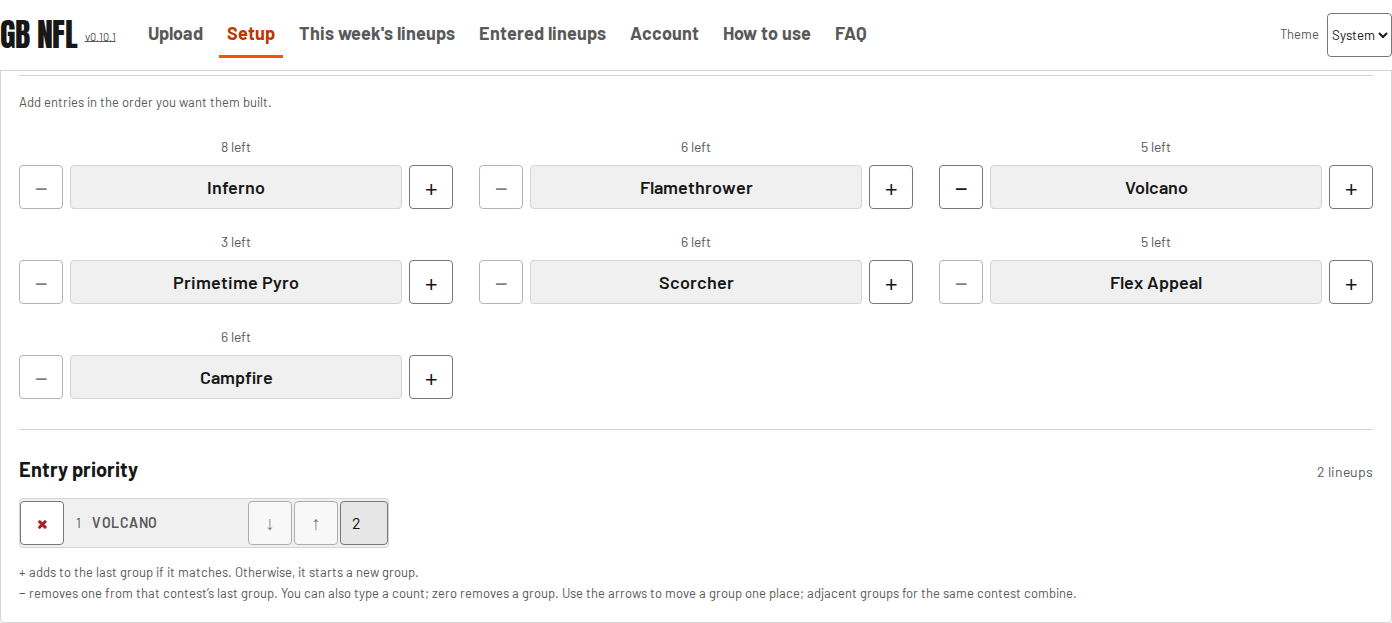
You can build one contest at a time or make a mixed plan. Saved entered lineups already use some of your cards and entry capacity.
- In the contest list, add the number of entries you want.
- Check the salary cap, roster slots and entry limits shown for each contest.


Step 8 / 28
Put your entries in priority order
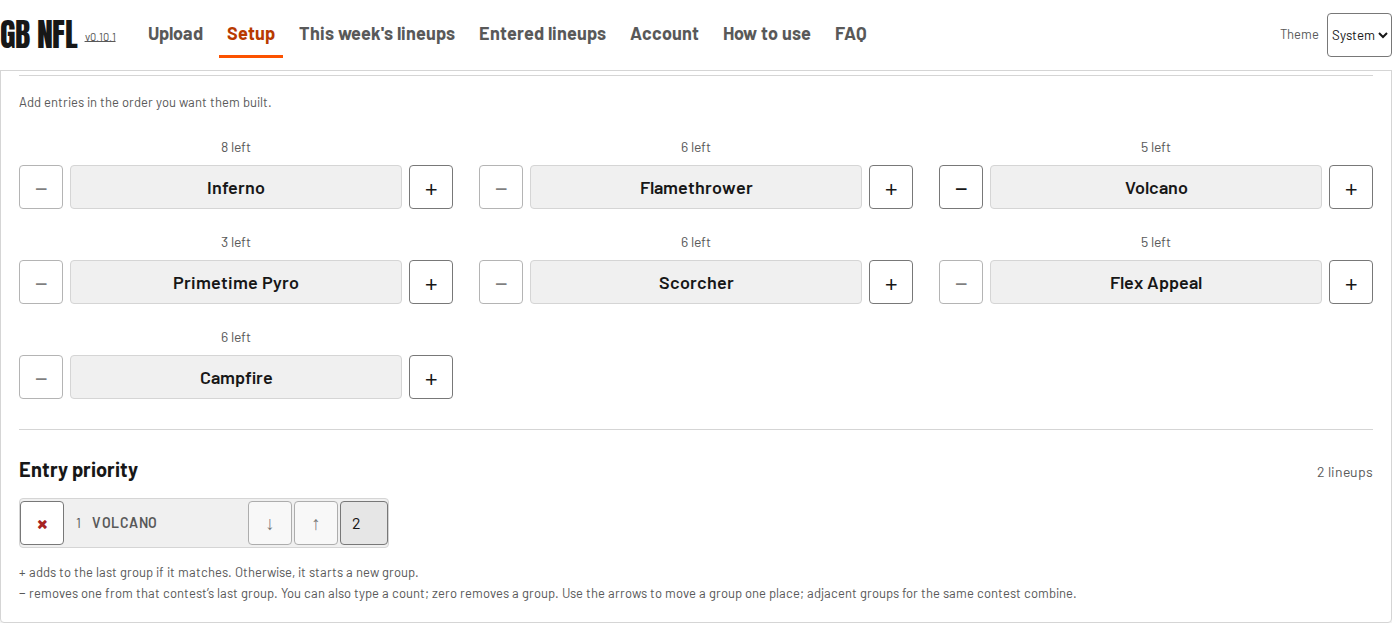
Earlier entries get first choice of available cards. A card can be used in only one lineup; separate copies of the same player are separate cards.
- Move the entries you care about most higher in the plan with the order controls.
- Check the order before building.


Step 9 / 28
Build your lineups
The optimizer fills your entries using your collection, projections, contest rules and priority.
After choosing the cards, it prefers to place eligible players with Wednesday through Saturday games in core QB, RB, WR or TE slots before FLEX or SFLEX when space is available. This placement preference does not change the chosen cards, salary or projected points.
- Select Build Lineups and wait while the spinning football is shown.
- Read the result message when the workbench opens. It explains any entries that could not be filled.
Limit to one tight end when optimizing is on by default and can be turned off in Advanced tools. Adding more entries and building again regenerates working lineups while respecting locks. A build can stop at its time limit and return a partial result.



Step 10 / 28
Review a lineup
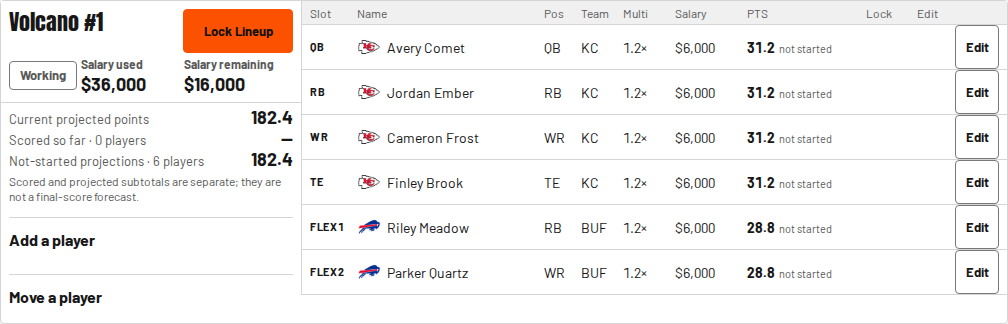
Choose a lineup in the left sidebar to see its players and totals on the right.
- Check each player, exact card, salary and projected points.
- Check salary remaining and the lineup total.
- Select Edit beside a player to open the available changes.
A red EXPIRED stamp appears beside expired cards in working, locked and saved lineup rows, in the Save Played Players picker, in Find a player on your roster results and in the expiring-cards dialog; plain menus such as Move show EXPIRED in the option text. The Replace and Add lists also show EXPIRED in the option text for eligible expired cards. It is only a label. Expiry follows UTC dates, so the stamp appears when the expiration date ends in UTC — 8 p.m. Eastern on that date during daylight time, 7 p.m. in standard time. From then on the optimizer no longer places the card. CSV and PDF downloads do not show it. Projected points are estimates and are shown to two decimal places on the workbench, on the Entered lineups page and in downloads. After games start, scored points and projections are shown separately.


Step 11 / 28
Replace a player
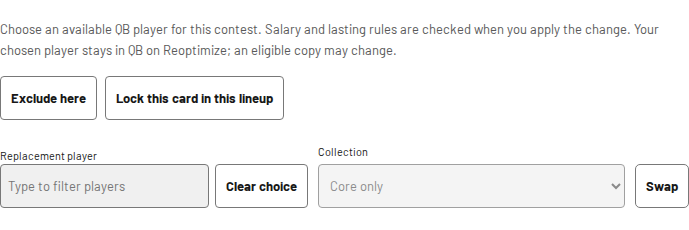
Use Edit to put a different card into a slot. Type the player’s name in the Replacement player box to see the cards of that player you can use here.
An Open, filled on Reoptimize slot shows Add instead of Edit. Add opens the same panel with Replacement player, Clear choice, Collection and Swap; Exclude here and Lock this card in this lineup are grayed out until the slot has a card.
- Select Edit beside the player, then type a name in the Replacement player box.
- Choose a suggested card. Each one shows the lineup it is in now, or bench.
- Read the card details before confirming the replacement.
- Use Add to put one card in an open slot; every other card and open slot stays as it was until Reoptimize.
The list offers every card of that player you own that is not locked elsewhere and is eligible for this contest and slot. Hidden and refused are cards locked in another lineup — because that lineup is saved or locked, because the card itself or its position is locked there, or because the player has already played or started — and cards that cannot play in this contest or slot. Players excluded from this lineup and cards another stack needs are not offered. Eligible expired cards appear last with EXPIRED in the option text. If you set one in a GameBlazers lineup before expiry, choose it and select Swap; confirm the message to save, or cancel to leave the panel unchanged. The card you choose goes into the slot regardless of salary; the replaced card is freed, not excluded. The placed card is locked in this lineup automatically, and an identical copy may be used in its place; Edit then offers Unlock this card in this lineup. Add also locks the card you place. Reoptimize this week keeps a placed, locked expired card in its slot and fills the rest; Build lineups keeps it through Add more lineups with the same uploaded roster, but a new upload does not keep the placement. If the card came from another unlocked working lineup, the slot it left stays open there until you reoptimize, shown there as an Open, filled on Reoptimize row. A replacement is allowed even if it puts the lineup over the salary cap: the lineup shows Over salary cap with the amount, your edits stay in place, and Lock Lineup stays unavailable until Reoptimize this week or your own edits bring it back under. In a contest that mixes Core and Primetime cards, Replace and Add on an open slot can also leave the lineup outside its collection mix. The lineup shows the conflict, and you can keep editing or use Reoptimize this week to fix it before locking. A contest that allows only one collection still offers cards from that collection only. The per-team limit and Limit to one tight end when optimizing apply when you build or reoptimize, not when you choose a card yourself.


Step 12 / 28
Lock a card or a whole lineup
A card lock keeps that version of the player in the lineup when you reoptimize. An identical copy may be used. A lineup lock protects the whole working lineup.
- Use the player’s Edit controls to lock that card choice.
- When the whole lineup is ready, select Lock Lineup.
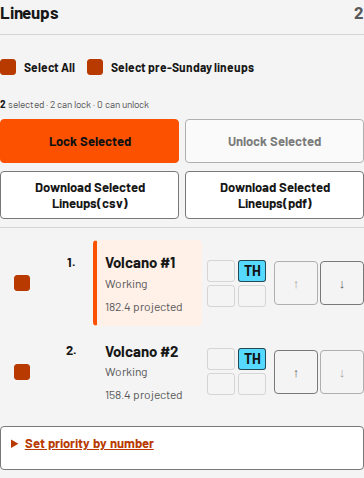
- Use the sidebar checkboxes and Lock Selected to lock several lineups together.
- To remove checked working lineups, select Delete selected lineups and confirm the number of contest entries.
Lock Lineup is unavailable while a lineup is over the salary cap. Reoptimize this week or change players to bring it under the cap, then lock it. In a contest that mixes Core and Primetime cards, a lineup outside its collection mix also cannot use Lock Lineup, Lock Selected or Save lineups as entered. Change your cards or use Reoptimize this week to bring it back into the mix. Lock this card in this lineup still works. Deleted entries leave the workbench and are available again through Add more lineups. Other lineups stay, though their numbers may change. Played cards in a deleted lineup return to your bench. Locked lineups are kept and named in the result; unlock one before deleting it. Unfilled lineups cannot be checked. Saved lineups are on Entered lineups; use Delete there.



Step 13 / 28
Exclude a player from one lineup
Exclude here prevents that player from returning to this particular lineup. It does not exclude the player everywhere.
- Open Edit beside the player and choose Exclude here.
- To undo it, click the X beside the player under Excluded from this lineup.
Exclude here changes only this slot. For a contest that uses one collection, it follows the salary rule. It fills it with the eligible bench card with the highest projected points that keeps the lineup at or under the salary cap. If none does, it takes the highest-projected eligible bench card anyway, and Lock Lineup stays unavailable until the lineup is back under the cap. In a contest that mixes Core and Primetime cards, Exclude here first looks for an eligible bench card that keeps the lineup inside its collection mix, then prefers one that stays under the cap and has the highest projected points. If eligible bench cards exist but none keeps the mix, it uses the best one; the lineup is marked and the message notes the conflict. Lock Lineup waits until the lineup is back under the cap and inside its mix. If no bench card is eligible, the slot becomes Open, filled on Reoptimize. Lock this card in this lineup changes no other slot.



Step 14 / 28
Move a player or swap positions
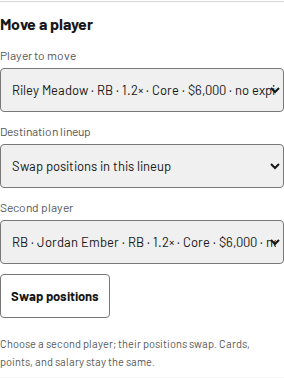
Use Move from a player’s Edit controls to send that player to another lineup or swap the positions of two players in the same lineup.
- Open Edit beside a player, then choose Move.
- For a position-only change, choose Swap positions in this lineup and a second player. Both players must be eligible for each other’s slots.
- To move between lineups, choose the destination. If it is full, choose which player leaves it. The source lineup is refilled when possible; otherwise it may be left unfilled.
A same-lineup position swap keeps the exact cards, points and salary unchanged, and card locks stay in place. A protected slot, started or manually played player, or locked lineup may block the swap. In a contest that mixes Core and Primetime cards, Move can leave a working lineup outside its collection mix; position swaps still work when that lineup is already outside its mix. The lineup shows the conflict until you change cards or reoptimize. If any move conflicts with a rule, the lineups stay unchanged and the app explains the problem.


Step 15 / 28
Put teammates together with a stack
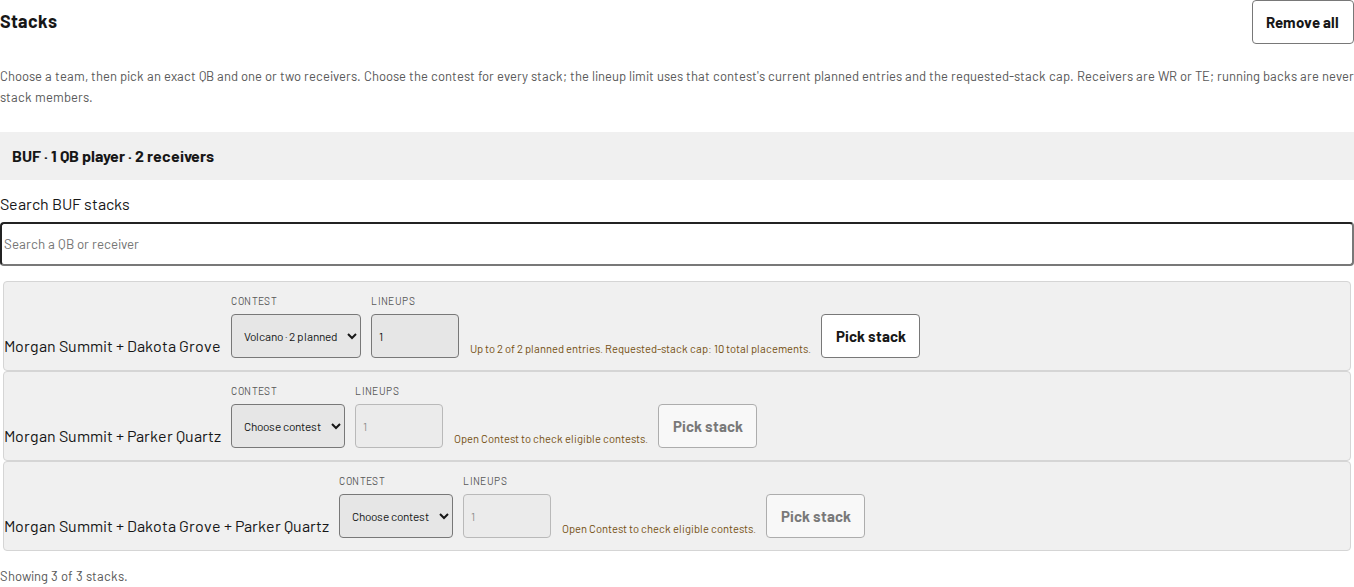
A stack puts a quarterback with one or two wide receivers or tight ends from the same team in a lineup.
- Open the Stacks controls in Advanced tools.
- Choose a team, then your quarterback and receivers. Choose a contest from the legal options.
- Choose how many placements you want and save the rule before building or reoptimizing.
Credit contests are excluded. The chosen contest’s entry count, your cards and the site’s total placement limit restrict the number of placements.


Step 16 / 28
Make a contest’s lineups differ with Variance
Variance lets the optimizer give up a little projection so lineups in the same contest share fewer players. It stays off until you turn it on, and Off keeps the normal optimizer. Find it in Advanced tools on the Setup page or the workbench, between Lock & exclude players and Stacks.
Each contest in your plan gets one row. Its allowance is Off, Light 2%, Medium 5%, Heavy 10% or Custom, a percent you choose up to 25%: at 5%, a lineup keeps at least 95% of its best projection. Different lineups looks for players not in that contest’s earlier lineups. Higher multipliers prefers cards with higher multipliers within the allowance; it is a candidate heuristic for upside, not a guarantee.
The first lineup in each contest keeps top projection unless individually overridden. To change one lineup only, select it on the workbench and use its Variance bar: Use contest setting, Keep top projection or Custom.
- Open Advanced tools and turn Variance on.
- Choose an allowance and a spend for each contest.
- Select Apply Rules to save them; on the Setup page they are also stored with your draft as you go.
- Build lineups or select Reoptimize to use them.
Removing a contest from your plan hides its row and keeps its setting; add the contest back and the setting returns. Turning Variance off keeps your settings for the next time you turn it on.



Step 17 / 28
Limit how often a player appears
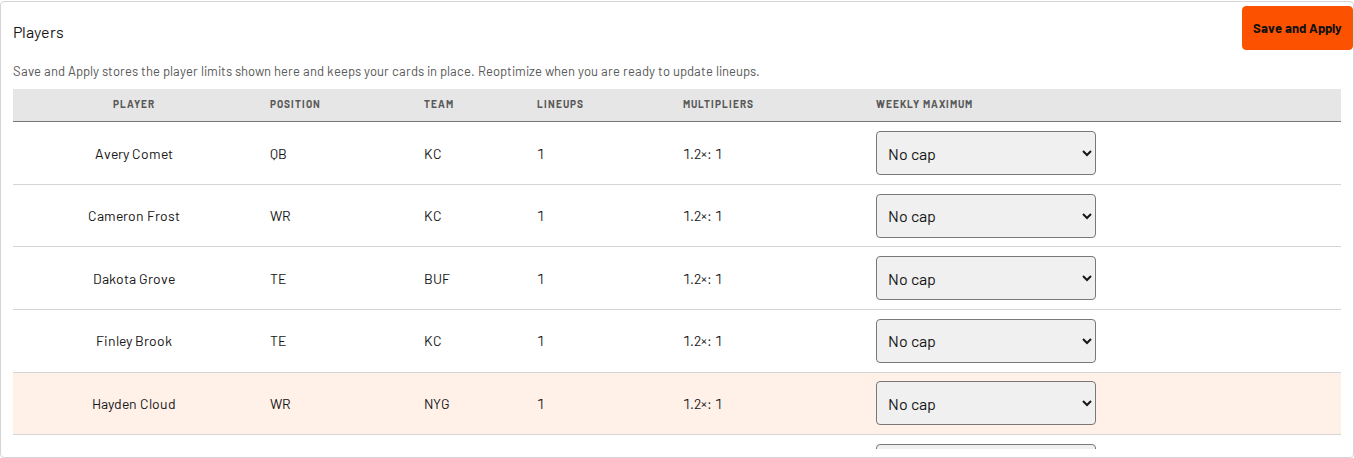
Exposure means how many lineups include a player. Separate copies of the same player count together.
- Set a weekly limit or a limit within a contest.
- Save your limits, then select Reoptimize when you are ready to apply them.
- In Highest Exposure, expand a player or team to see its contest breakdown.
Saving limits keeps the current cards in place until you reoptimize.


Step 18 / 28
Rebuild the working parts of your plan
Reoptimize applies your projections, priority and rules to eligible working slots. When this run's projections come from the database, it first refreshes them if the database has this week's numbers. Limit to one tight end when optimizing is on by default; turn it off in Advanced tools when you do not want that preference. Other lineup rules still apply.
How your rules were applied and the Unused premium panel count your saved entered lineups together with your working run. A week whose lineups are all saved still reports your stacks and locks as met and your premium cards as used, instead of reading as zero.
A search box below Reoptimize lets you type a player’s name. It lists every card of that player you own, with each card’s multiplier, salary and projection and the lineup it is in — or bench when it is in none — and each lineup is a link.
- Make your rule or priority changes.
- Select Reoptimize this week.
- Review the resulting lineups before entering changes on GameBlazers.
- To handle a late scratch, search the player and select Return all entered lineups with this player to the workbench.
Saving the tight-end preference changes the next build or re-optimize; it does not rearrange current lineups. While the preference is on, a manual tight end in FLEX and the required core TE are both honored, as are protected played players, but the optimizer adds only the minimum extra tight ends those requirements need and no further optional tight end. Locked working lineups, saved entered lineups, started players and manually played cards stay protected. Cards you check in the expiring-cards dialog are left out of the next Build lineups or Reoptimize, unless the card is recorded as played or held by Lock this card in this lineup. A player lock does not keep it. The optimizer never puts an expired card in a new or reoptimized slot unless it was recorded as played or placed and locked with Add or Edit. Return all entered lineups with this player to the workbench pulls back every saved lineup that player is in at once and leaves the lineups you are already working on alone. Refresh from database updates numbers from the run’s saved source choice without rearranging lineups; switching built-in sources here is not yet available. If a card lock for a contest, the whole run, or another lineup names a card that has expired, Reoptimize this week, Add more lineups and Build lineups can refuse. The message names the lock and card and tells you to remove the lock or narrow it to the lineup where the card was set.


Step 19 / 28
Update your roster without losing your lineups
Update roster, beside Reoptimize in the workbench, swaps a new roster export in under your current lineups.
A lineup is kept, with its saved status and the lock state it had, when a copy of every card it needs is still free for it on the new roster. Copies go first to players who have already played, in any lineup; after those, saved lineups take their copies, then locked lineups, then lineups with played players, then unavailable played holds, then the rest of your working lineups. Players who have already played stay in their slots even if the new export no longer lists them, and a complete lineup that keeps a played player stays kept, locked or unlocked as it was, with no open slot.
A working lineup that loses a card and has no played players is released: it empties, and a notice names the lineup and the cause (no longer on the roster, or its copy is used by a lineup ahead of it or by an unavailable played hold). Only a working lineup that loses a card that has not played while keeping played players keeps its remaining cards; those missing slots open, the lineup is unlocked, and the notice names the open slots.
- Export a fresh roster CSV from GameBlazers.
- In the workbench, choose that file under Update roster and select Update roster.
- Refill an emptied lineup with Reoptimize. Fill the open slots of a lineup that lost a card but kept played players with Reoptimize or a hand pick.
The update is refused, and the message says what to re-export, when a saved lineup would lose a card that has not played. Update roster is unavailable while a draft is open or for a past week's run, and the button says why. Replace roster on the draft page still clears your working lineups.



Step 20 / 28
Understand what happens at kickoff
When a player’s game starts, that player is protected in generated lineups. Other eligible slots can still be reoptimized.
- Check the next-lock time near the top of the workbench.
- After kickoff, check the lineup’s lock and scoring information.
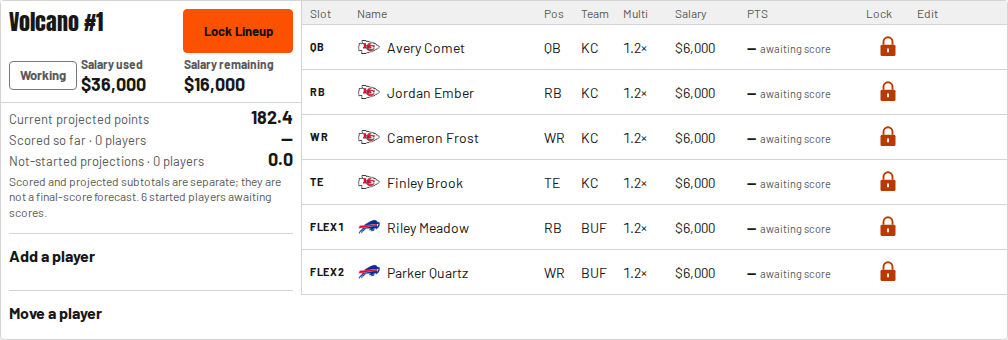
An actual score may show awaiting score until an update arrives. That is not the same as scoring zero.


Step 21 / 28
Record cards you already played
Use this if you entered cards on GameBlazers and need the optimizer to match what you played. The option becomes available at the first kickoff of the week.
- Check Manually set players already played.
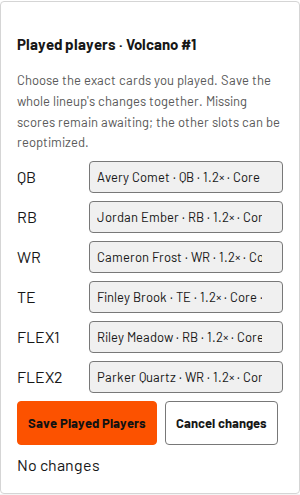
- Open each affected lineup and choose the exact played cards for its slots. Type the player’s name and check the card details.
- Select Save Played Players to save that lineup’s changes together.
Played cards are reserved. The picker lists only cards whose player's game has started or finished, including a team you marked as started in late swap. A card whose game has not started is not listed, and Save Played Players refuses it with a message saying the player has not played yet. Cards already recorded as played stay recorded. The picker offers every free card of that player that the contest and slot accept, including a Core card from any year when Core is allowed. It does not offer a Primetime card in a Core-only contest. Save Played Players accepts a card from your current upload after its expiration date, but every other check still applies. A card set in a GameBlazers lineup before expiry stays usable that week while it stays in that lineup; here, an expired card can stay in a locked or saved lineup, or in its slot with Lock this card in this lineup. If Reoptimize takes it out here, use Add or Edit, choose it under Replacement player, then select Swap and confirm to put it back in its slot. Reoptimize will not choose it on its own. The other eligible slots can be reoptimized. In a contest that mixes Core and Primetime cards, Save Played Players accepts a hand-picked card even if it leaves the lineup outside its collection mix; the lineup is marked, and Lock Lineup and Save lineups as entered wait until you bring it back into the mix. Read any conflict message before confirming a change.


Step 22 / 28
Save lineups as entered
Saving keeps a record here. It does not submit or update entries on GameBlazers.
- Enter the lineups on GameBlazers yourself.
- Lock the working lineups you want to save.
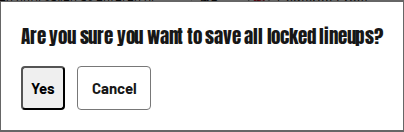
- Select Save lineups as entered. Answer Yes to “Are you sure you want to save all locked lineups?”
Saved lineups leave the workbench and appear under Entered lineups. Their cards remain reserved. You can build and save one group, then use the remaining cards for another.


Step 23 / 28
Download the lineups you select
Downloads are a handy reference while you fill out your GameBlazers entries. Working lineups do not need to be locked or saved first.
- Check the lineups you want in the sidebar. Select pre-Sunday lineups selects entries containing players in Wednesday through Saturday games.
- Choose Download Selected Lineups as CSV or PDF.
Downloads show slot, player, position, team, multiplier, Core or Primetime collection, salary and projected points. Points already include the multiplier and are shown to two decimal places.


Step 24 / 28
Download a GameBlazers bulk-entry CSV
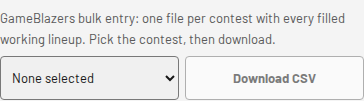
GameBlazers accepts a CSV upload for bulk entries. In the workbench, pick the contest in the drop-down and select Download CSV for your working lineups; on an entered week, each contest has its own Download GameBlazers CSV button for your saved lineups.
The file has one row per lineup: a preset name such as WK6-Flamethrower-1 (the week, the contest, and the lineup's number among that contest's lineups for the week when you download: saved lineups count first, working lineups continue after them), then the GameBlazers item id of the card in each slot column, in the contest's slot order. FLEX and SUPERFLEX hold whatever your lineup placed there.
- Upload the current GameBlazers export; it carries each card's Item Id.
- Pick the contest in the drop-down, then select Download CSV.
- Upload the file in GameBlazers' bulk entry.
The download refuses, and says why, when a lineup's card has no item id (a roster uploaded without the Item Id column, or a lineup saved before this release) or when one item would appear in two lineups this week. Lineups with started or played players are included: each such card is written as the exact card in its own column, which is how GameBlazers matches a locked player. Upload the file, then apply each preset to its entry in GameBlazers; GameBlazers rejects, by itself and for that lineup only, a preset whose locked card does not match. Updating the roster keeps a locked player's exact card. With a current roster that carries Item Ids, you can return an old saved lineup to the workbench, lock it and save it again: that saves the cards you hold now, possibly a different copy of the same card, and Return can fail when no copy is free. It does not recover the items in your old GameBlazers entry; reconcile that entry on GameBlazers yourself.


Step 25 / 28
View your saved entered lineups
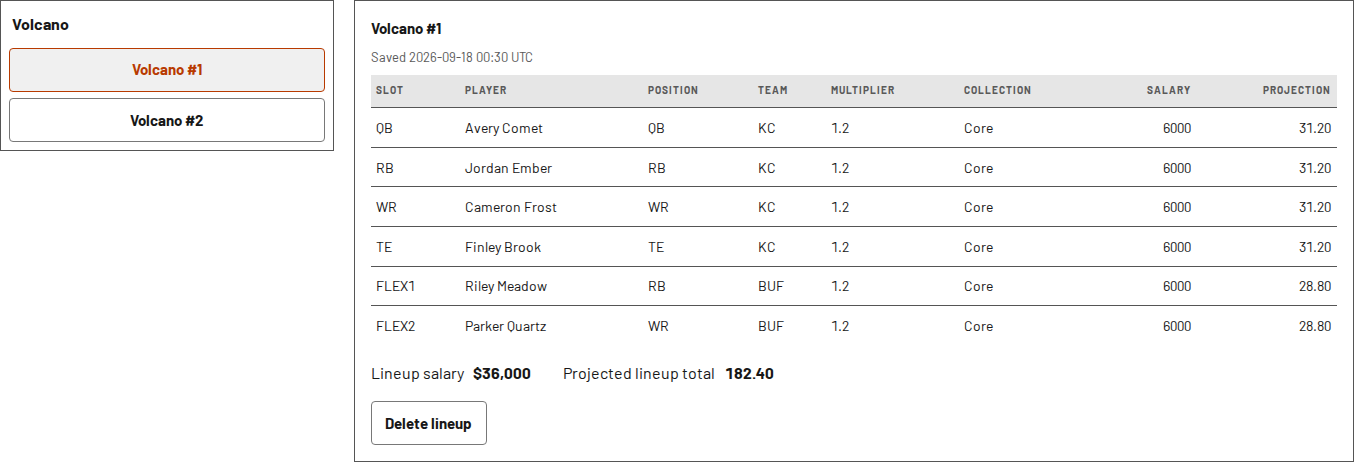
Your saved lineups are grouped by week and contest.
After games begin, each player shows an Actual column beside the projection. The projection is labeled at save because it was frozen when you saved the lineup. Two live lines under the saved total follow the week: Points scored so far adds the real points of players whose games have started or finished, and Remaining projected points adds the at-save projection of players who have not kicked off yet. The saved Projected lineup total (at save) never changes.
- Open Entered lineups and choose a week.
- Expand a contest, then choose an entry to see the lineup on the right.
- Use the week’s CSV or PDF download when you want a copy of its saved lineups.
- Select Return to Workbench beside Delete to pull a saved lineup back into your working run for editing.
Only one contest group is expanded at a time. A player whose game is in progress counts only in Points scored so far, at his real points. The week’s CSV and PDF downloads include the same Actual column and live totals. Return to Workbench brings a saved lineup back into your working run with its cards intact: the lineup leaves Entered lineups, its cards become available again, and saving it later creates a new saved lineup. If a card is no longer on your roster, the return is blocked and the app names that card.


Step 26 / 28
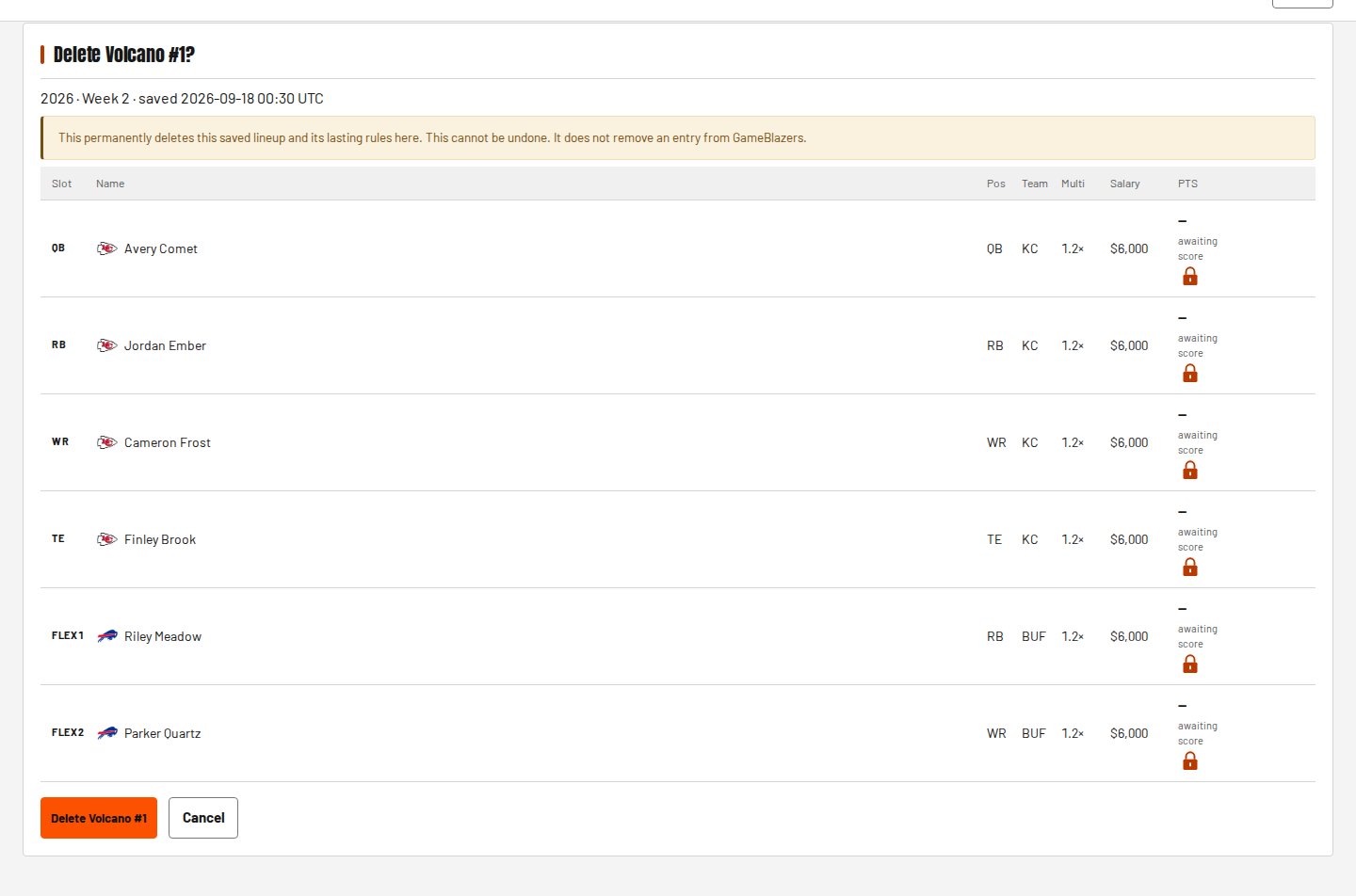
Delete a saved lineup
Delete a lineup here if you saved it by mistake. This does not delete anything on GameBlazers.
- Open the saved lineup under Entered lineups.
- Select Delete lineup and review the confirmation.
- Confirm only if you want to remove the saved record.
Deletion is permanent here. Rebuild the lineup if you need it again.


Step 27 / 28
Look back at a finished week
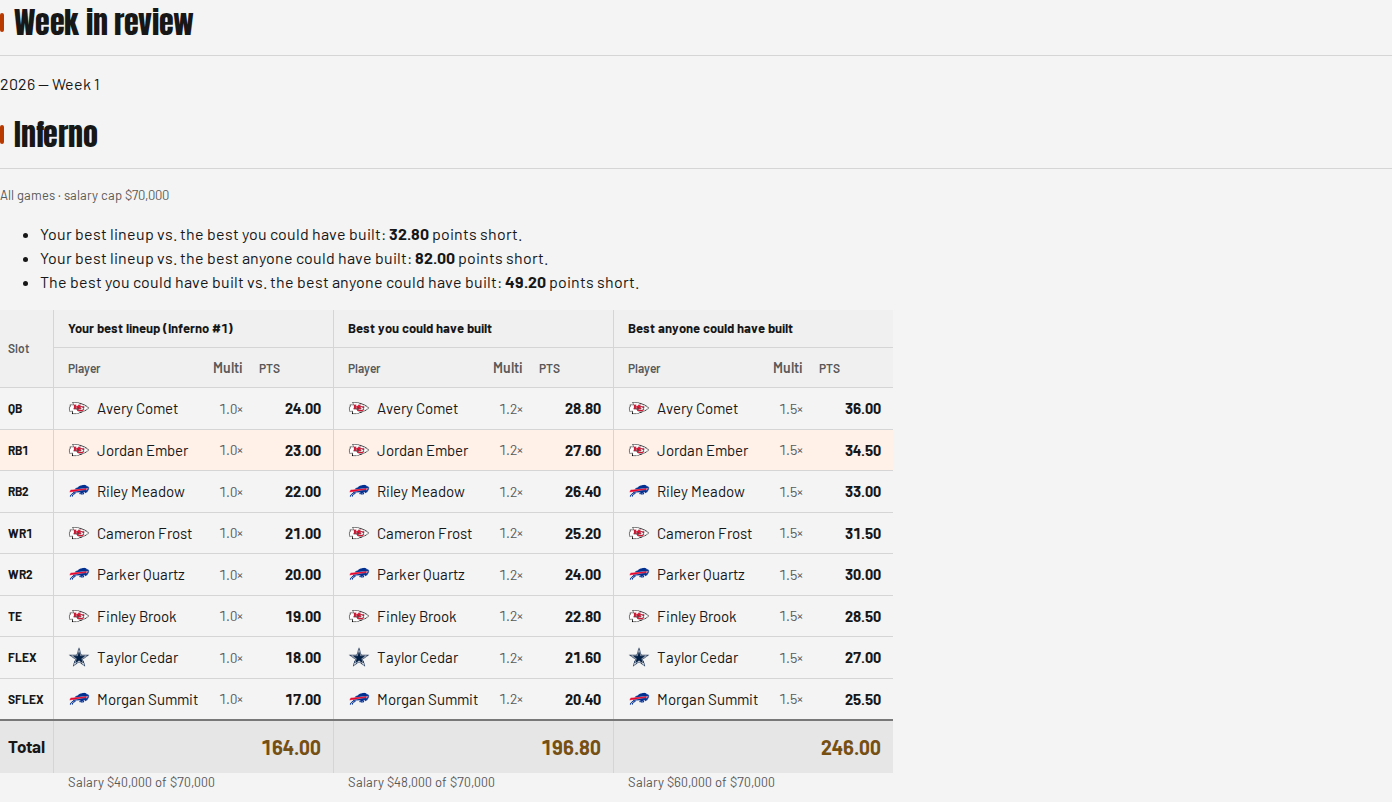
Week in review is a read-only page for signed-in accounts. It opens your newest finished week with stored results. A week appears only after every game is final; an in-progress week cannot be opened by a direct link either.
Each contest shows three lineups side by side, aligned by slot. Your best lineup is the highest-scoring lineup you saved as entered. Best you could have built uses your roster for that week. Best anyone could have built uses the league-wide card choices under that contest’s rules. Points include card multipliers.
The comparisons show your submitted best against each possible best, and your roster’s best against anyone’s best. The Total row shows each lineup’s points. If the stored results are being updated and do not match yet, the anyone column and its comparisons say refreshing.
- Sign in and open Week in review in the navigation.
- Use the back and forward week links, when shown, to move between finished weeks.
- Read the three comparisons and the Total row for each contest.


Step 28 / 28
Start fresh on Tuesday
At the weekly reset, the old working setup clears: roster, working lineups, rules and exposure limits. Your account and entered-lineup history remain.
- Wait for GameBlazers to update the weekly salaries.
- Export and upload a fresh roster.
- Choose projections and build your new week’s plan.